
Phone: Use the walking stick on foot and the steering arrows and pedals in a car. See the touch controls.
PC: Use WASD or the arrow keys, and drag with the mouse to look around. Jump to the keyboard and mouse reference.
Touch controls in portrait and landscape
Select Play now, wait for Hill Villa to load and choose Explore the villa to start on foot. Hold and drag the bottom-left stick in the direction you want to walk. To see around a corner or line up with a car, keep your first finger on the stick and drag an open part of the scene with another. Stand next to an unlocked car and tap Get in when the prompt appears.
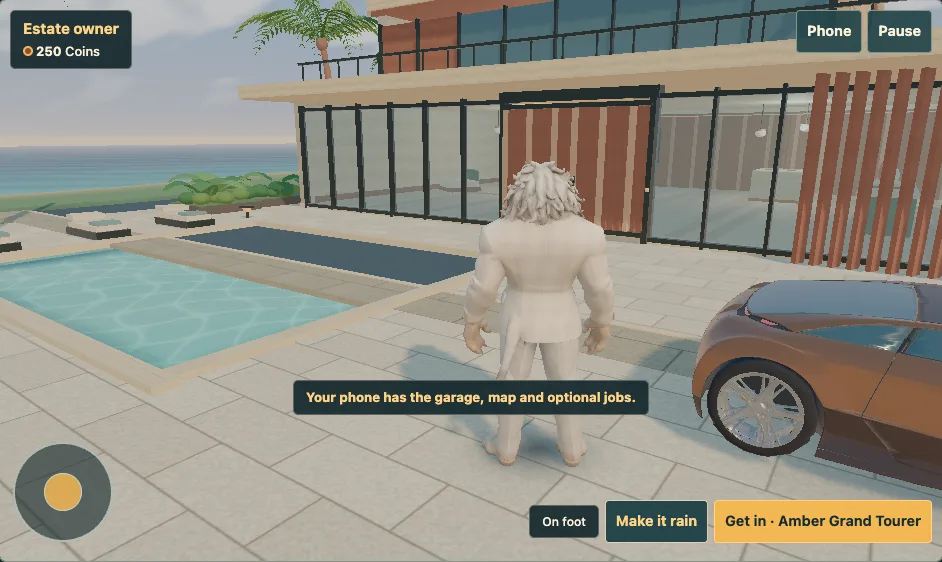
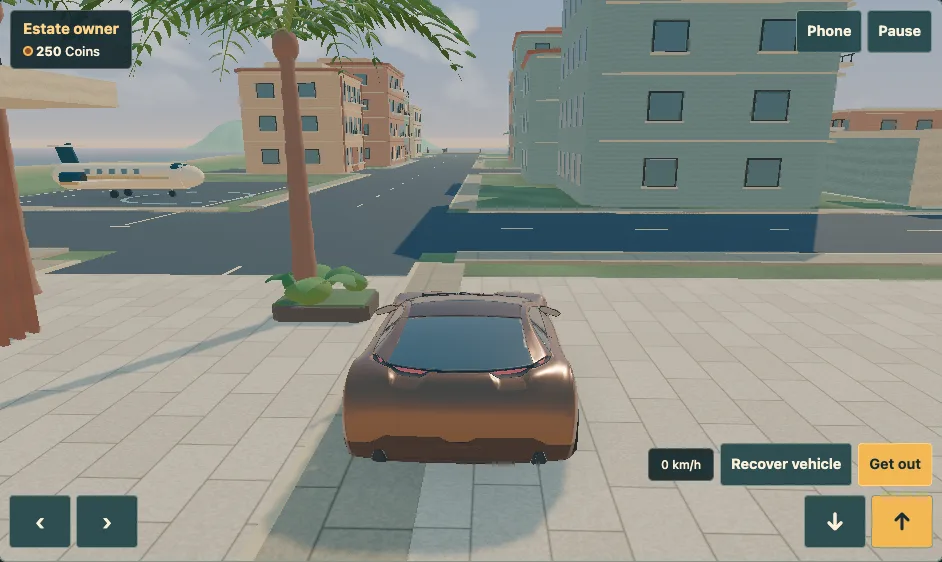
In a car, hold a steering arrow on the left and use a pedal on the right. The up pedal accelerates. Hold the down pedal to slow down, then reverse once you’ve stopped. Drag the scene to look around before moving again. In portrait the same actions are available, but landscape gives your hands more space. Use Fullscreen on the Play page if your browser supports it. The steering buttons stay in the same positions when the interface is in Urdu.
Keyboard and touch reference
On a computer, click the 3D scene before using shortcuts, especially Tab. If focus is outside the game, Tab moves between normal browser controls. Mouse dragging adjusts the view. For the prices and unlock paths, see the car collection and Garage guide. Release the movement keys before opening the phone or switching tabs. On touch, pushing the walking stick all the way to the edge makes you run. Pull it back toward the center to slow down when you’re lining up with a car door.
| Action | Keyboard and touch |
|---|---|
| Walk or run | WASD or arrow keys to walk, Shift to run. On a phone use the walking stick. |
| Look around | Drag with the mouse or drag the open 3D view with a finger. |
| Drive | W/↑ accelerates, A/D or ←/→ steers, S/↓ slows then reverses, and Space brakes. Use steering arrows and pedals on touch. |
| Enter, interact or exit | E or the on-screen prompt. The prompt changes with the nearby door or vehicle. |
| Recover the active car | R or Recover vehicle while driving. |
| Open the phone | Tab with the game focused, or tap the phone button. |
| Pause or return | Esc or P to pause during play, or tap Pause. Select Resume to continue. |
| Throw paper bills | F or Make it rain while on foot. |
Use the map and board the jet
Open Map in the phone to mark Hill Villa or the private airfield, then follow the waypoint back in the 3D view. Approach the jet on foot and use the interaction button to board. The flight follows a guided route, so you can spend the trip looking out over the bay. Use Return to airfield to end the flight early.
Recover, pause and adjust graphics
If your car is wedged against a wall, stay in the car and use Recover vehicle. The game puts the active car in an open space. If you’re already outside and want to find it, use Locate in the phone’s Garage. This marks the car without moving it.
If movement stutters, open the game phone and choose Low in graphics settings. Return to the game and try the same turn or stretch of road again. Sound and language are also available in settings. The controls guide can be reopened there if you forget an action during play. If the 3D view won’t open at all, see the browser play and troubleshooting guide.
Switching to another tab or app pauses play. When you come back, choose Resume if you see the pause screen. If you had the phone open, close it to return to the estate. Reopening the browser later restores your saved balance and unlocks and starts you back at Hill Villa.
Read about the independently developed game and its five languages.
Play now